
1 Open the right inventory
Open the team and channel containing Inventory, then select its Inventory tab. Each tab can contain a separate inventory or mirror an existing one. Check the inventory name and the signed in account in the lower left before booking. Your organization controls which channels and assets you can use.
The walkthrough uses max@melcher.it as the inventory owner in the Teams desktop client and mail@teams-inventory.com as the requester in Teams in a browser. Screenshots and steps use the English interface.
| Area | Use it to |
|---|---|
| Calendar | See availability and create reservations. |
| Assets | Browse, search and favorite assets. |
| My Reservations | Find your bookings and check their status. |
| Approvals | Review requests for assets you manage, when available. |
| Reports | Filter reservation records and export results. |
Navigation changes with your permissions and screen size. Expand the sidebar if labels are hidden. If Settings or License is visible, that alone does not mean you are allowed to change the inventory. Ask the owner when a command is unavailable.
2 Find an asset and check availability
- Select Assets. Search by name, location or details, or narrow the category list.
- Switch between Grid and List to suit the number of assets. Select the star to favorite an asset; Only favorite assets limits the list to your favorites.
- Open an asset to read its description, location, custom properties and next reservation. Choose Reserve to start a booking for that asset.
- Use Calendar to compare bookings. Change the view to Day, Week, Work Week, Month or Year, navigate dates, and use the search field to narrow assets.
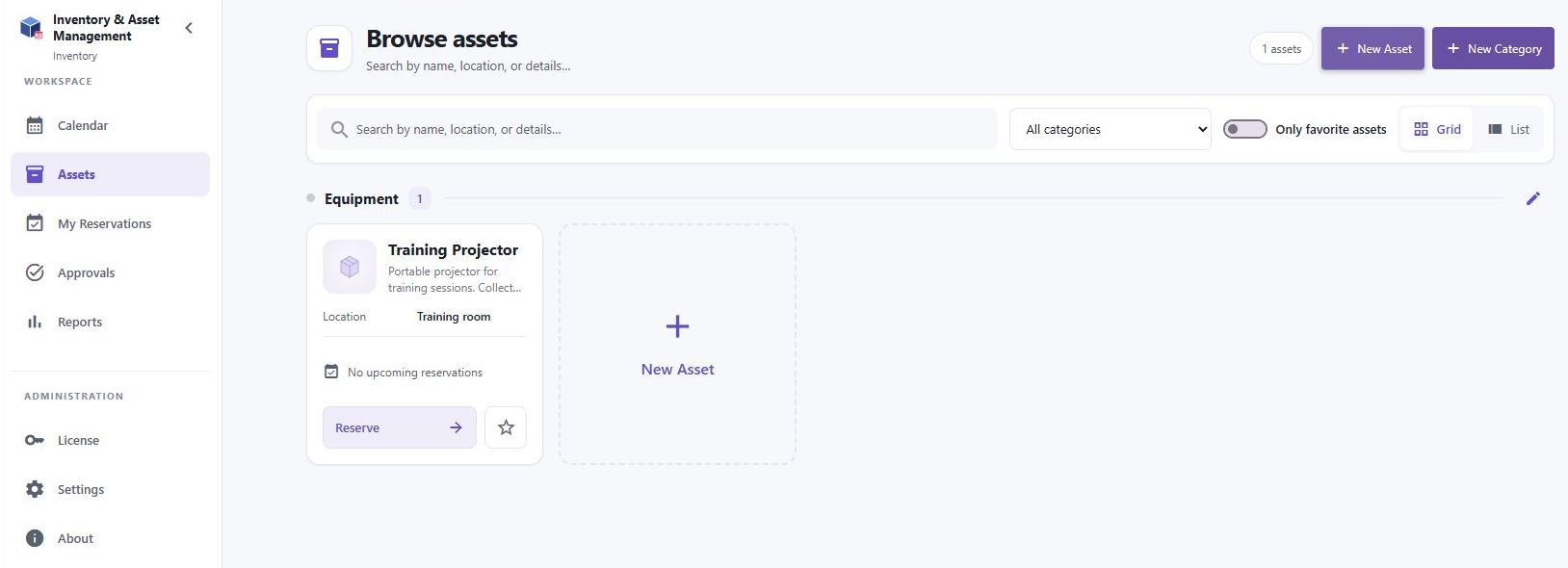
An asset location tells you where the asset normally lives. The reservation location records where it will be used. Hidden assets may be visible to owners but unavailable to regular users and guests. A missing asset may also be outside your selected category or favorites filter.
Availability depends on existing reservations, the overlap policy and holiday restrictions. Work hours highlight the working day in the regular calendar; guest availability is limited to configured work hours and working days. A displayed slot can change while another person is booking.
3 Submit a reservation
Example: mail@teams-inventory.com requests the Training Projector for a training session on 9 October 2026 from 10:00 to 11:00. Choose a future date appropriate for your own booking.
- Select Calendar then + Reservation, My Reservations then Add Reservation, or Reserve on an asset card.
- Enter a meaningful title, such as Training session. Keep Book for set to Myself for your own booking. Add a location if needed.
- Expand the asset category and choose the asset itself. Categories cannot be reserved. Hold Ctrl when selecting several assets if your task needs more than one.
- Set the start and end dates and times. Use 30 minutes, 1 hour, 2 hours, Morning or Afternoon presets as a starting point, then check the resulting times. Select All day when appropriate.
- Leave Repeat at Never for a single booking. Add notes and complete any required custom fields, including fields on the Additional tab when present.
- Review the details and select Save. Resolve validation, holiday or overlap messages before retrying. Open My Reservations to verify the booking and its status.
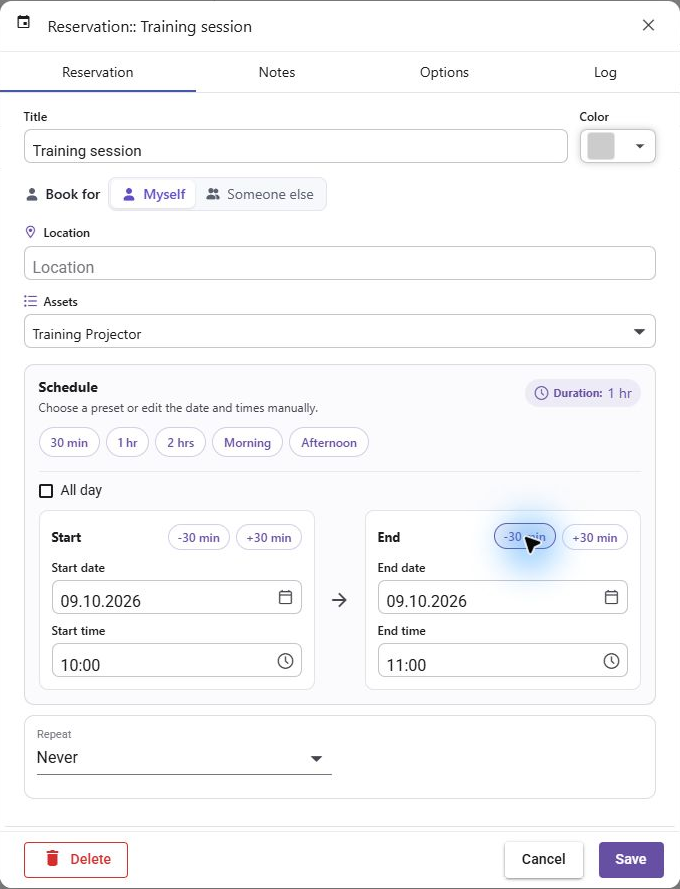
Prohibit double bookings blocks an overlap. Warning allows it but highlights conflicts. Allow permits overlaps. The owner chooses the policy; a warning is not an approval decision. Do not repeatedly submit if Save is still processing.
4 Track approval and notifications
When approval is required, saving submits a request. Pending is not permission to collect or use the asset. An owner can approve or reject the request. Owners booking for themselves may be automatically approved, so an owner booking is not a useful test of the requester workflow.
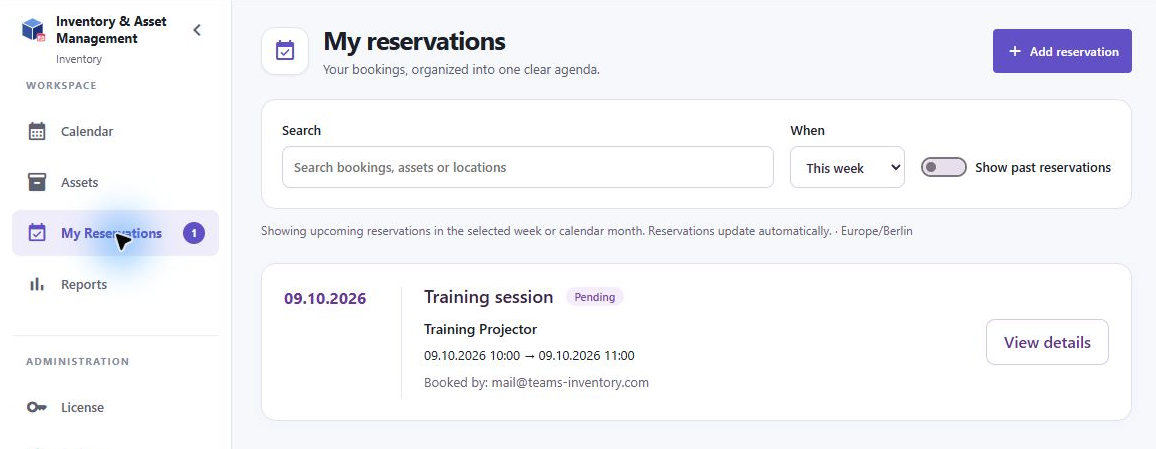
- Open My Reservations and find your request. Search by booking, asset or location and check the period filter.
- Read the status badge. Pending waits for a decision, Approved authorizes the booking, and Rejected means the request was declined.
- Watch Teams Activity when notifications are enabled. Select an Inventory notification to open the associated reservation.
- After a decision, verify the status in My Reservations. Contact an owner if a request remains pending close to its start time.
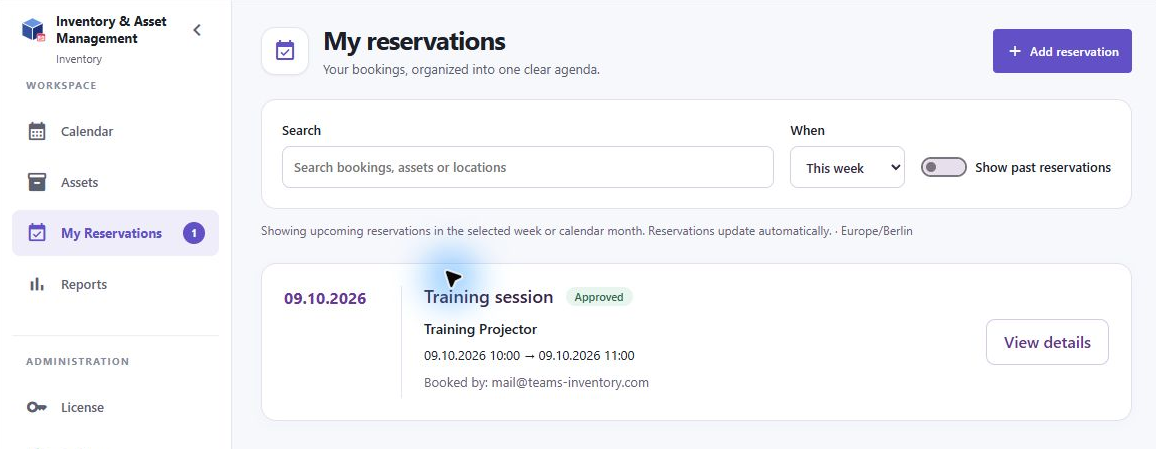
Approval notifications go to the responsible owners. Decision notifications go to the reservation creator. Start and end reminders also depend on the inventory notification settings and the individual reservation options. Email notifications require the inventory to be configured for them; do not assume that every reservation sends an email.
5 Find change and cancel your bookings
- Open My Reservations. Choose a period such as This Week or a calendar month, or All when you need a wider range. Enable Show past reservations for older bookings.
- Select View details on a booking. Check its title, asset, dates, booked by identity, notes, custom fields and approval history.
- Edit fields when your permissions allow it, then Save and verify the updated reservation. Date changes may put an approved booking back into the approval process.
- To cancel, open the reservation and use Delete when available. Check the selected occurrence or series scope for repeating reservations before confirming.
The inventory can restrict who changes or cancels booked reservations. If a command is disabled, ask an inventory, category or asset owner. A booking made for another person stays owned by its creator; the booked person can see it in My Reservations and receive notifications.
Repeating bookings use the Repeat control and its interval and end options. Review all dates and conflicts before saving. When editing or deleting a repeating booking, read the scope prompt carefully: changing one occurrence and changing a series have different effects. Owners may approve a recurring series using the series controls.
6 Book for another person
- Create a reservation and select Book for Someone else, if the inventory permits this.
- Choose the intended people from the available picker. Verify their identities before saving.
- Complete the asset and time details, then save. Check the resulting booking and tell the booked people about collection arrangements as needed.
The creator remains the reservation owner. Booked people receive the applicable notifications and see the booking in My Reservations. Being selected as a booked person does not make someone an inventory administrator.
7 Check in and return an asset
If Enable check-in is turned on, an approved reservation can be checked in after it has started, during or after the booking. Check-in records the return; it does not physically return the asset.
- Return the asset to the agreed location and inspect it for damage or missing accessories.
- Open the reservation details and select Check in when available.
- Enter useful feedback if requested, then complete check-in and verify the recorded status.
Owners are notified about check-in feedback. If Check in is unavailable, check that the reservation is approved and has started, or ask the owner whether check-in is enabled. Do not use cancellation as a substitute for recording a completed return.
8 Create a guest reservation
An owner can provide a guest booking link or QR code. Open it in your browser. This flow does not require access to the Inventory Teams tab. Some inventories require Microsoft sign-in; others collect name, email and phone number.
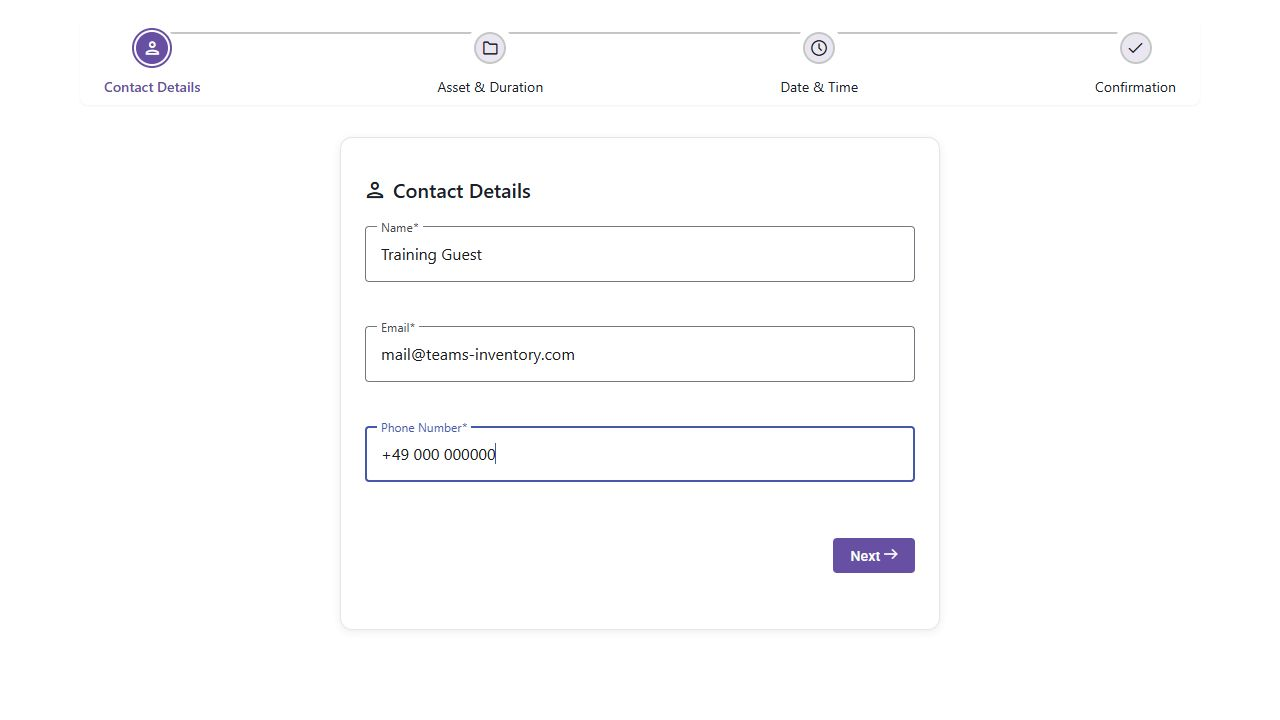
- Open the link or scan the QR code supplied by the owner. For a public contact form, enter your name, email and phone number, then select Next. When Microsoft authentication is required, follow the sign-in flow instead.
- Choose an asset and its duration in whole hours. The owner sets the minimum and maximum duration. A link may already select a particular asset.
- Choose a date and an available start time. The page lists slots for your selected duration, within the configured work hours and working days.
- Review the asset, contact details, date, time and duration. Add notes and any custom fields shown, then select Submit Reservation once.
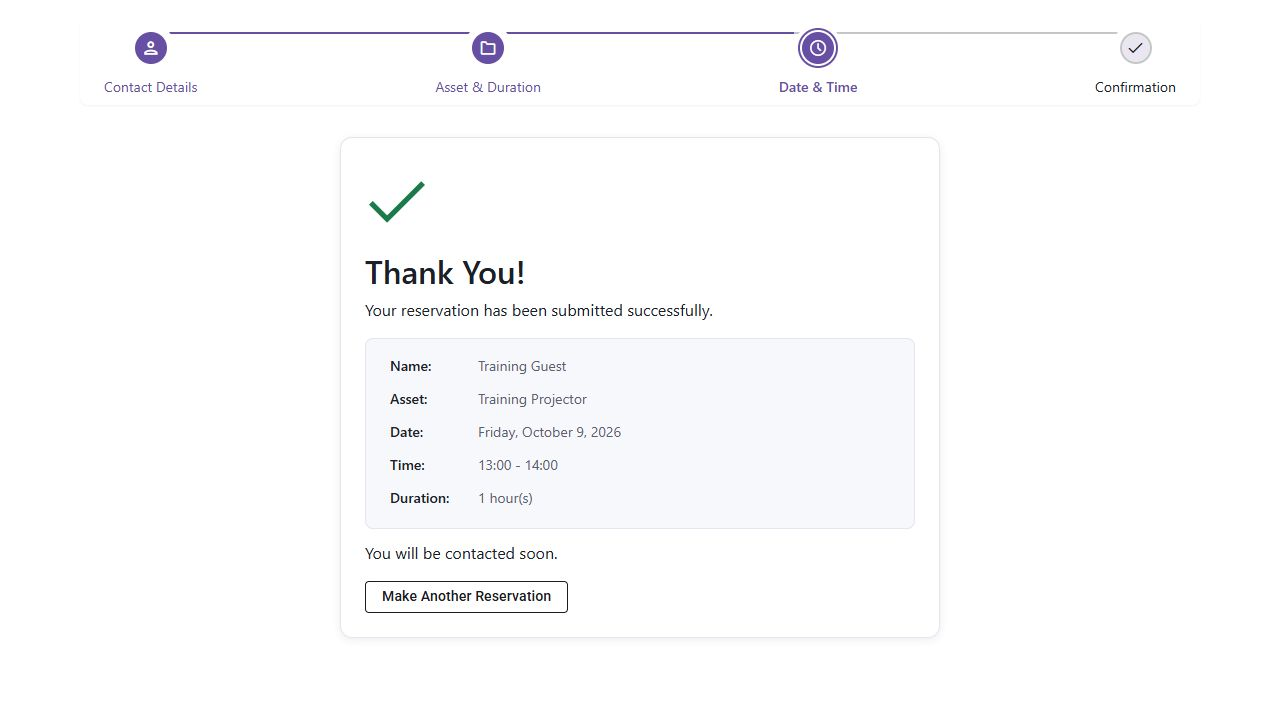
- Wait for the Thank You page. When approval is required, this confirms submission of a request. Wait for the owner to confirm approval before using the asset.
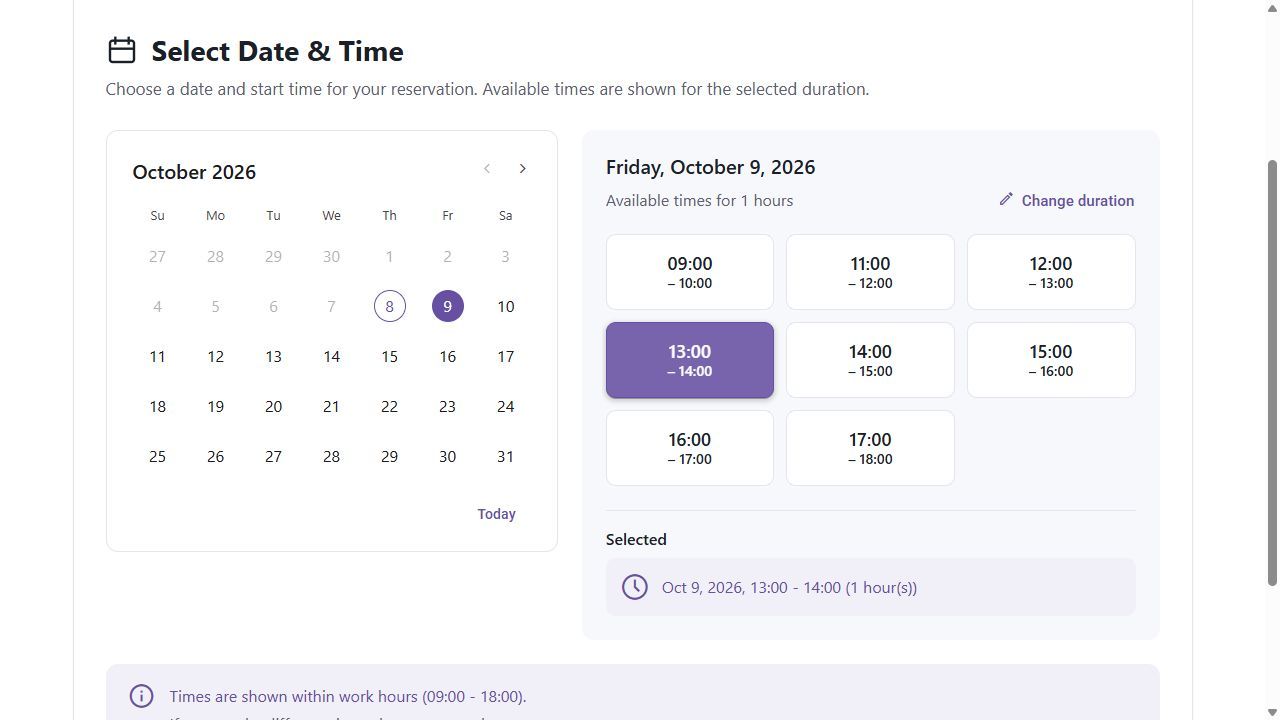
If a slot becomes unavailable before submission, choose another slot. If no dates or times work, try a different duration or contact the asset owner. Holidays may block reservations. Do not assume that the Thank You page or an email address entered in the form guarantees an automatic email confirmation.
9 Use reports and calendar subscriptions
- Select Reports. Choose the assets and date range you need.
- Use Include time for precise boundaries. Date only ranges include the selected days. Add Notes or Custom Fields columns when useful.
- Review the results, sort or page through them, then select the available PDF or Excel export.
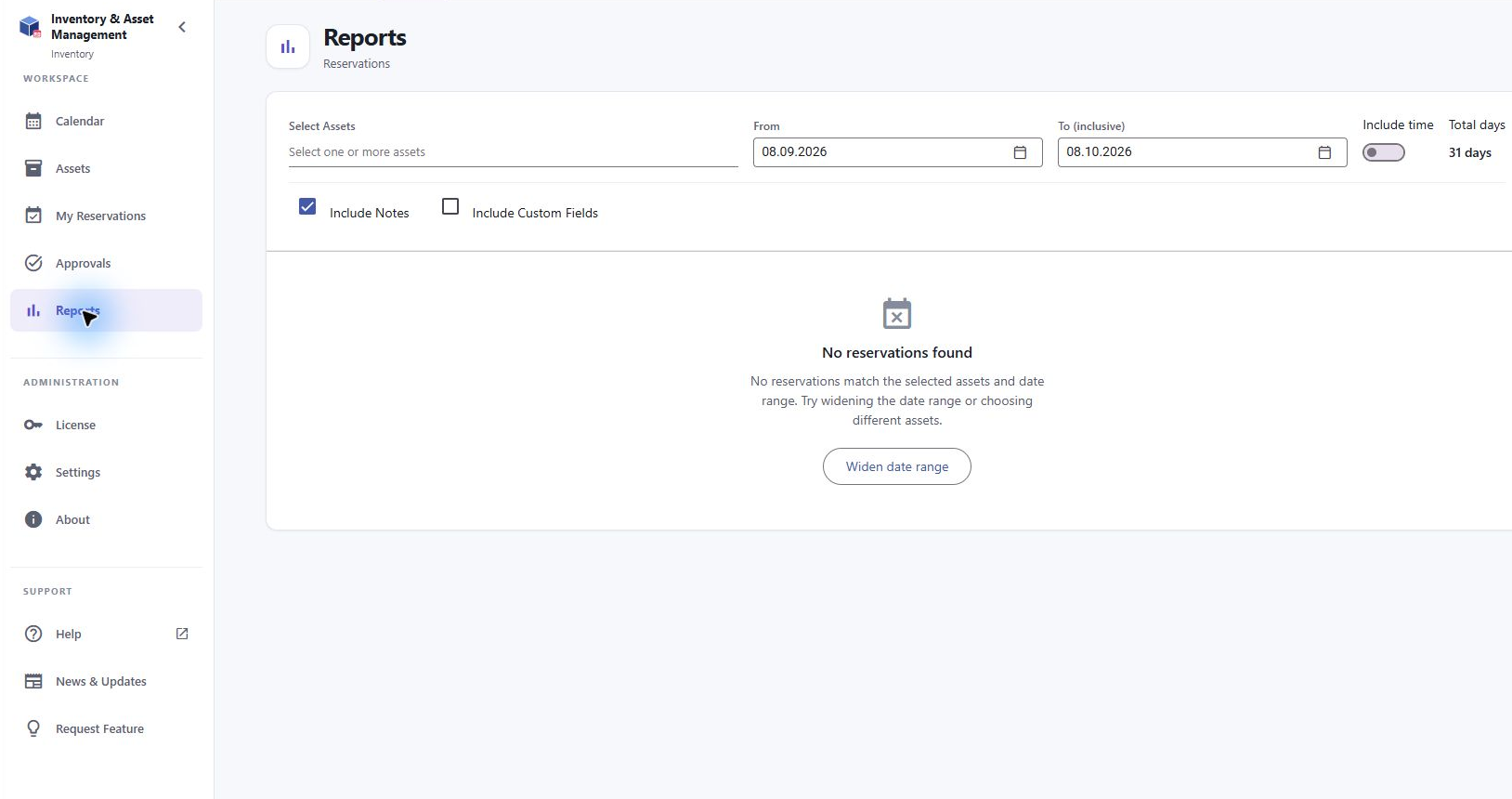
If results are empty, broaden the date range and remove asset or search filters. Long ranges with recurring reservations can produce many rows; use a narrower range when warned. Small screens may hide columns, so review the export on a larger screen if necessary.
An owner may supply an iCal subscription link for an external calendar. Subscribe using that calendar application’s URL subscription feature. This is a one-way view of inventory reservations: edits in the external calendar do not change Inventory. Refresh can take up to 24 hours. Treat the feed link as private.
10 Solve common booking problems
| Problem | What to check |
|---|---|
| I cannot find an asset | Check inventory, category, search and favorites filters. Ask whether the asset is hidden. |
| Save is blocked | Check required fields, end after start, overlaps, holiday rules and license capacity. |
| My booking disappeared | Check the period, Show past reservations, selected inventory and signed in account. |
| My request is still pending | Contact the responsible owner. Submission does not approve the reservation. |
| No notification arrived | Check Teams Activity and the app notification preferences. Ask the owner to check notification settings and owner routing. |
| I cannot edit or cancel | The inventory may limit modification to owners. Ask an owner to help. |
| Guest times are unavailable | Check duration, work hours, working days, conflicts and holidays. Try another date. |
| External calendar is out of date | Allow for subscription refresh delay; check Inventory directly for current status. |
For support, include the inventory name, asset, reservation title, dates and times, your account, and the exact error text. Do not send license keys, inventory access tokens or calendar feed URLs in public posts. The Help, About and News & Updates entries provide additional product information.